2.5.3-create-application
2.5.3 Create Application
The MK Low-Code platform supports directly creating new applications or importing existing ones through "Create" and "Import App" in upper-right corner. This section will introduce the operations for creating new applications and app import.
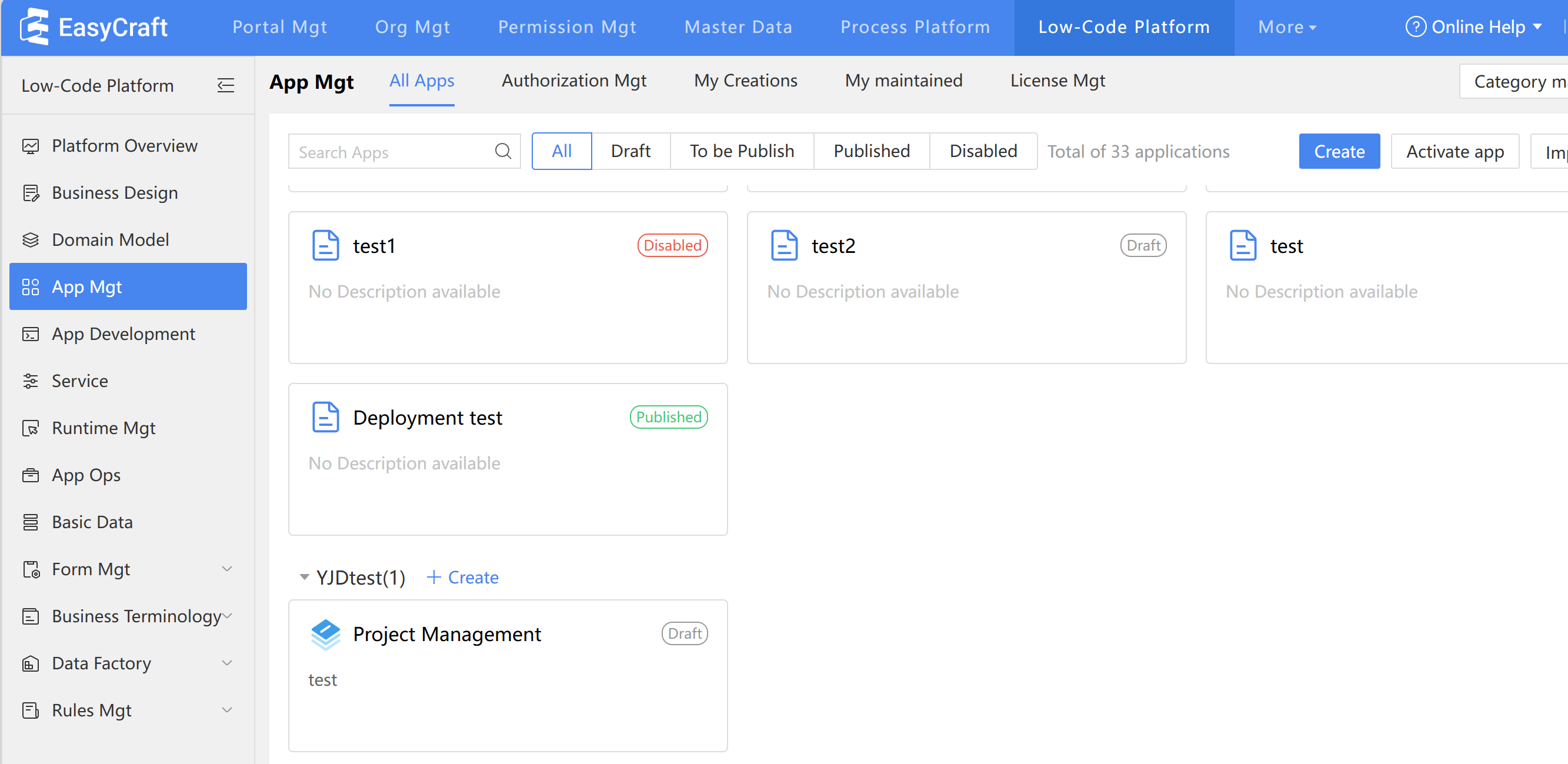
Figure: Create Application
- Steps to create an application:
- Step 1: Click the "Create" to enter the new page. If the category is confirmed, users can select "Create" next to the category name, and the application will be automatically categorized.
- Step 2: Set the application name and application code; select the application icon and settings, then fill in the application description as needed.
2.5.3.2 Import Application
If two apps have similar designs, users can import an existing app, make minor modifications, and use it directly. Alternatively, after designing in one environment, users can import it into another environment for direct use. Select "Import App" in the upper-right corner and follow the system prompts. A successful import will generate a private or shared application. Private apps allow additions, deletions, and modifications, while shared apps can only modify existing configurations and cannot add new ones. Shared apps are defaultly set to the "Published" status after import, which only allow enabling or disabling the application.
2.5.3.3 Activate Application
Users can batch activate apps by uploading a cdkey compressed package through the "Activate App". After activation, the results and reasons for any failures will be displayed in a list.